Our school (not our district) has GAFE accounts, and I and another teacher do the administration of about 800 accounts. This year, I am trying to streamline some of the work and use some of my new JavaScript knowledge. To start, I wanted to create a form that teachers could fill out whenever a student needs their password reset. (Since we have middle schoolers, some of the possible ways an account password could be reset --- e.g., a text message to a phone --- aren't possible.)
First step, I wrote a form to collect information from the teacher about the student:
Next, I enabled the Email Notification for Forms add-on, so that I'm emailed every time a teacher fills out the form. The step of changing the password I am planning to do manually based on the information in the Google Sheet. But finally, I changed the script in this tutorial (showing how to send email based off a Google Sheet) so that when I run it, the teachers are informed of the student's new password.
I'm glad some of the steps are automated and that I understand the JavaScript well enough to make meaningful edits. However, if there is an easier way to do this, I'd love to hear about it.
Showing posts with label Google Form. Show all posts
Monday, August 8, 2016
Friday, July 8, 2016
Grading in Google Forms: What does feedback look like?
If you want to use Google Forms to grade student work using their tools (and not, for example, Flubaroo's), there's a lot of ways to give students feedback on how they did. I'm going to cover some of the quiz-wide options you have. (There are also options you can give for each question which I'm not covering here.) BTW, I haven't made a video for how to make a Google Form quiz, but you can go to Richard Byrne's blog post Free Technology for Teachers: How to Enable Automatic Grading in Google Forms for a quick video overview.
When you decide to make a Google Form a quiz, in the quiz settings you will see the following options checked by default.
And here's what we get if we just check "Point values":
When I use Google Forms for formative assessment in my classroom, my students like to look at answers from other students. To encourage as much learning as possible (and not just copying), I will probably check "Missed questions" and "Point values", but not "Correct answers" (so a tough question will need everyone to think about it). If I use this for summative assessment and a grade, I will probably not check any of the boxes. Your mileage may vary, and I'd love to hear about different ways of using these options.
When you decide to make a Google Form a quiz, in the quiz settings you will see the following options checked by default.
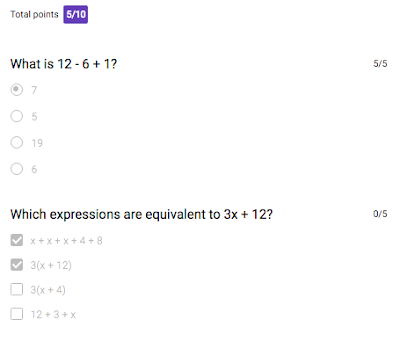
Let's look at what each of these options do in detail. I created a sample quiz and answered it the same way while choosing different options out of the three above. Here's what I get with all three chosen:
Note a couple of things: we get a score for each question and a total score (because we checked "Point values"), we get red and green highlighting of incorrect and correct answers (because we checked "Missed questions"), and we get the correct answer to the checkbox question we missed (because we checked "Correct answers").
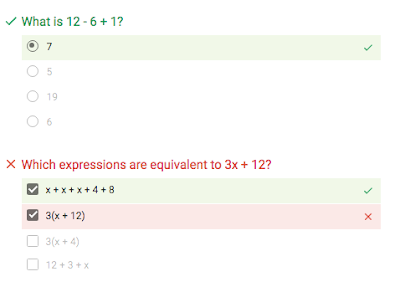
Here's what we get if we just check "Missed questions":
![]() |
| Notice the red and green highlighting. |
Here's what we get if we just check "Correct answers":
![]() |
| Notice everything is in grey. |
![]() |
| Notice the score at the top and next to each question. |
Tuesday, June 28, 2016
Google Forms now supports quizzes!
Yes, yes, yes! Thanks to a post from Richard Byrne I learned that Google Forms now support quizzes. (You can find the official announcement here. ) I have some images from a test quiz I created below, but here are my quick takeaways:
- The response summary page shows the most missed questions (below 50%) and now shows multiple choice responses as a bar graph instead of a pie chart.
- You see student scores next to their email addresses.
- You get a median, average, and range of scores.
- If you store responses in a Google Sheet, the score is passed to that sheet.
- You can still collect short answer responses that are ungraded --- they will still be passed to the Google Sheet.
- There's an option where you can release scores later after your review.
- You can give feedback for correct and incorrect answers.
In short, this is what Google Forms has needed for education for a long time. I'm looking forward to using this in my classes!
![]() |
| What a student sees after submission |
![]() |
| Some basic statistical information about the quiz |
![]() |
| Student and question breakdowns |
Friday, June 24, 2016
How to use Google Forms in the classroom (with videos)
I've done a lot with Google Forms in my classroom over the last few years, with more and more as I've moved to Google Classroom. I usually have my students do two to three Google Forms a week, often as bell ringers. Since my school district is hopefully moving to GAFE for all schools, I thought I would create a few videos showing how I create, deploy, and use Google Forms.
Subscribe to:
Posts (Atom)